
Not sure how to create a Google Business Profile (formerly Google My Business)?
Without one, your business stays invisible in Google search results and on Google Maps.
👉 In this tutorial, we will show you how to create a Google account and your profile in under 5 minutes.
Simple, free, and essential to be visible locally!
Our client Visiopolis created its Google Business Profile with Up Review and started showing up on Google Maps within days of verification.
Step 1: Open a Google Account (1 min)
If you already have a Google account (an @gmail.com address), sign in directly here:
👉 business.google.com/business-profile and move on to the next step.
Otherwise, follow these steps to create your business account:
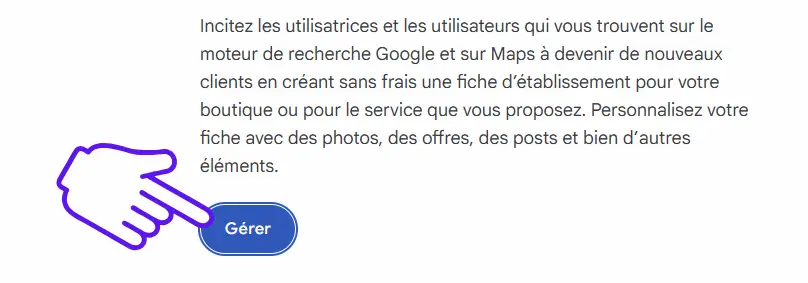
Click "Manage,"
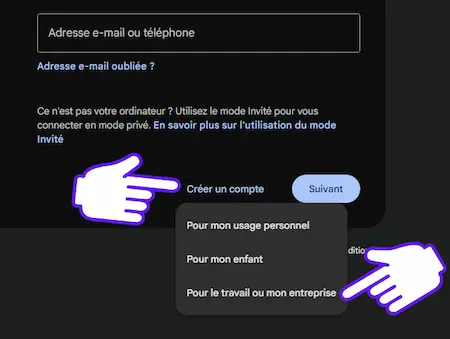
Select "Create account,"
Choose "For work or my business."
You will be offered two options:
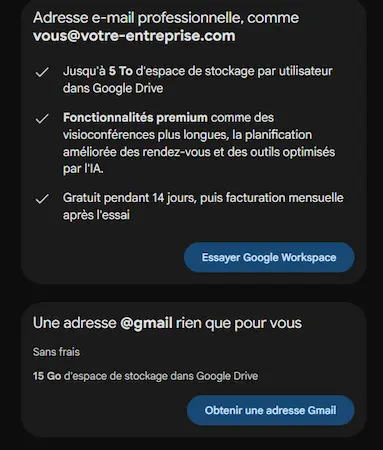
Create a free Gmail address.
Use an existing email address (it will be verified by email).
Example: If your business is called Paloha in Lyon, you could create an address like paloha.lyon@gmail.com.
Then fill in the personal details requested:
Your first and last name
Date of birth
Recovery email address (optional)
Phone number (optional but recommended)
A secure password
Accept the terms of service
You will receive a verification code by SMS or email to confirm your account has been created.
🎉 Congratulations, your account is now active! You can now sign in and move on to creating your Google Business Profile.
Step 2: Create Your Google Business Profile (3 min)
Now for the most important part: how to create your Google Business Profile step by step.
Go back to 👉 https://www.google.com/intl/en/business
Click "Manage" to access your dashboard
Sign in with your Gmail address
Enter your password
Once signed in, you will land in the process of creating a business profile.
Google will ask you to fill in several details. Don't worry, you can edit your answers later if needed.
1. Choose a business name
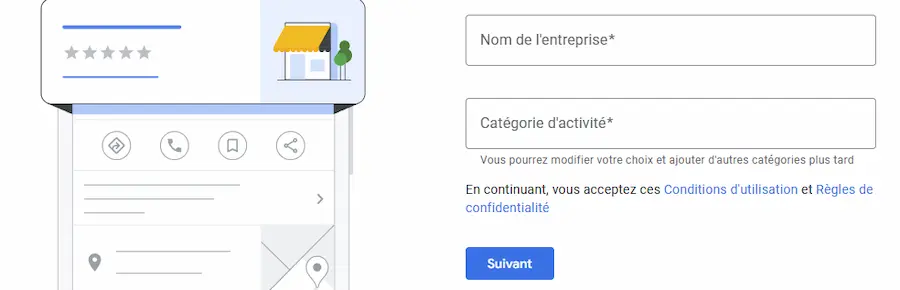
Enter the exact legal name of your business, with no city or marketing phrases added.
Example to avoid: Fine Wood Floors - Chicago - Flooring Installation.
⚠️ This kind of format is no longer allowed by Google and can lead to penalties or a suspended account.
This business name will then be tied to your profile in Google search results.
2. Choose your business category / main category
A drop-down menu lets you choose your business type. Select the one that best matches your activity.
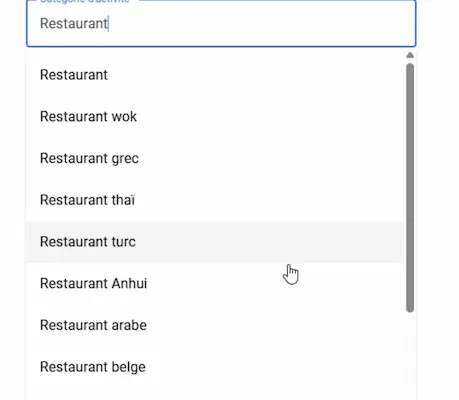
You can then add secondary categories if needed.
👉 Note: only businesses with direct customer contact are eligible for a Google Business Profile.
Businesses that operate 100% online with no point of contact are not eligible.
3) Add your address or service area
If you welcome customers on site: enter your full address (street address, postal code, city).
If you travel to your customers: list only the geographic area you serve.
⚠️ Using a virtual office address or PO box can cause problems. Google may suspend your business profile if the geolocation is not consistent.
4) Check whether a profile already exists
While you set things up, Google may suggest profiles similar to yours, with a message like this one:

If you recognise your business: click "Request access" to claim your profile.
If none of them match: select "None of these" to continue creating your profile.
💡This helps avoid duplicate profiles, which can hurt your local SEO.
5) Enter your contact details
Next, enter a valid phone number (mobile or business landline).
⚠️ The number must not be a premium-rate line.
You can also enter your website URL if you have one (optional).
This step is essential so people can call you, visit your website, or send you an email directly from Google Maps.
6) Accept the terms of service
👉 Before finishing, tick the box for Google's terms of service.
You can review their privacy policy and how they handle personal data.
Then click "Continue."
🎉 Congratulations! Your profile is now created and saved. Just one step remains to make it visible on Google: verifying it.
Step 3: Verify Your Google Profile (1 min)
Creating the profile is not enough: until it is verified, it stays invisible on Google.
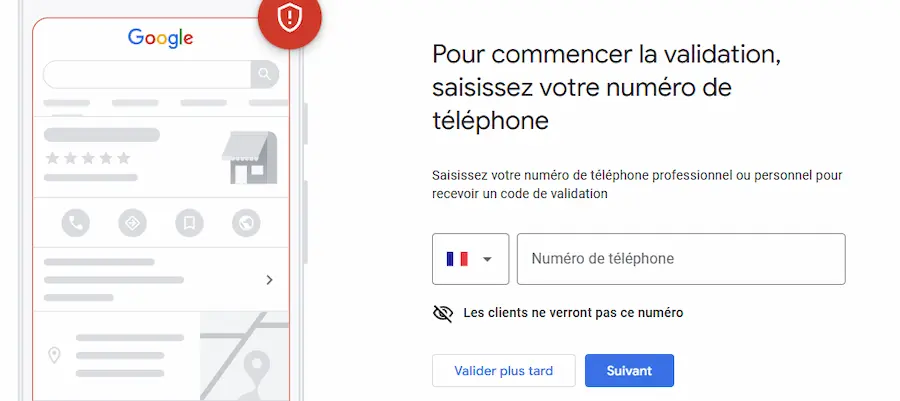
Google offers 3 verification methods, depending on your situation:
1. Phone verification
An automated call gives you a 6-digit code to enter in your dashboard.
The fastest and most reliable method, ideal for simple user accounts.
2. Video verification
Google asks you to film:
The outside of your business (sign, shopfront).
The inside (products, reception area).
Something that proves your business is real (e.g., your business registration number, documents on display).
Send the video through your Google account. You get a response within 24 to 48 hours.
3. Mail verification
Google sends you a letter containing a code.
You receive it in your physical mailbox within 5 to 7 business days.
Once you have it, go back to your dashboard and enter the code to verify your account.
Congratulations! 🎉 Once verified, your profile becomes visible on Google Maps and in search results.
Bonus: Optimise Your Google Business Profile
Creating and verifying your Google Business Profile is an excellent start.
But if you stop there, you risk going unnoticed in Google search results. Your next move is to list the same business details on the other free business listing directories that feed maps and search.
To rank well and gain visibility on Google Maps, here are the priority actions to take from your dashboard:
1. Complete your profile 100%
The more information you provide (hours, services, photos, your website URL, description, etc.), the more trustworthy your profile looks.
👉 Google favours complete profiles with a high completion score.
You can update this information at any time from your account.
2. Collect recent, regular Google reviews
It is not just the total number of reviews that counts, but especially how recent they are.
Your latest reviews strongly influence the algorithm.
👉 Remember to ask customers for feedback after every visit or order.
Need more Google reviews, fast?
👉 Discover our prize game to boost your Google reviews. 400+ businesses already use this solution.
3. Maintain a strong overall rating
Businesses with a high rating rank better, especially if the average stays stable over the last 30 days.
You can track this in the My Business tab or in your Google notifications.
4. Reply to every review
Whether positive or negative, every reply shows you are an active owner.
Your response rate is an important local ranking factor, and it also builds trust with users.
Tip: turn on notifications in your Google account so you are alerted for every new review, and reply quickly from your dashboard.
In short: the more active your profile, the higher it climbs in the results!

👉 Discover our complete guide: Optimise Your Google Business Profile in 15 Steps
Or