
Want to optimize your Google Business Profile but have no idea where to start?
You are not alone. Many businesses create their profile… then abandon it.
👉 Result: little visibility on Google, few clicks, and customers who go check out the competition instead (whose profiles are well optimized!).
Yet you already know it: a well-configured profile can change everything.
- More calls
- More in-store visits
- More sales
… and all that without necessarily spending a cent on advertising.
Good news: you do not need to be an SEO expert!
👉 In this guide, we show you how to optimize your Google Business Profile in 15 simple steps that are easy to apply.
The goal: make your business more visible, better presented, and better ranked in Google Maps search results.
What makes a profile climb in the local pack?
Google ranks Google Business Profiles in the local pack (the block with the map and the three businesses at the top of results) using three official factors: relevance, distance, and prominence.
- Relevance measures how well your profile matches the search. It depends on your main category, your description, and the services you list.
- Distance compares your location to the place the user is searching for. An exact address and a well-placed pin on Google Maps matter here.
- Prominence reflects how well known your business is: the number, rating, and freshness of your Google reviews, how complete your profile is, and your presence online.
Only one of these three factors is worked on daily and makes the difference: prominence, driven by a steady flow of recent reviews. That is the lever Google review management acts on most directly, and the thread running through the 15 steps below.
The 15 steps to optimize your Google Business Profile
1. Create a complete profile for every location of your business
Start by creating or claiming a Google Business Profile (formerly called Google My Business) for every location you own.
Fill in all the essential details:
- Business name,
- Exact address (precise geolocation),
- Phone number,
- Website URL,
- Opening hours,
- Professional photos.
A complete profile gives Google everything it needs to show your business in search results and strengthen your local visibility (do not overlook this!)
👉 Not sure where to start? Create your Google Business Profile in 5 minutes with our quick guide.
2. Choose the right main category
When you create or optimize your Google Business Profile, choosing the right main category is crucial for good local SEO.
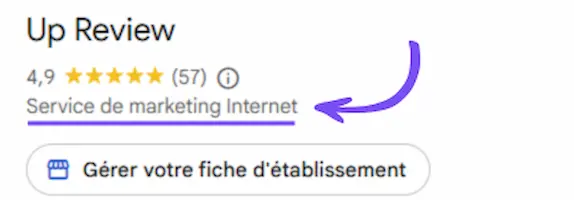
It lets Google understand exactly what your business does and show it in the most relevant search results.
Pick a category that describes exactly what you offer (e.g., "high-end hair salon", "tapas restaurant", "auto repair shop").
This improves your visibility in search engines and increases your chances of appearing in front of genuinely interested customers (qualified and ready to act).
👉 You can also add secondary categories to reflect other services you offer, as long as they stay relevant to your business.
3. Verify every one of your locations
Yes, really! Without this verification, your location will not appear in search results.
👉 Why verify your profile?
- It proves to Google that you are the legitimate owner of the location.
- It strengthens your credibility with users.
- And most importantly… it gives you access to every Google Business Profile feature (statistics, messaging, Google review management, etc.).
How to do it:
- Log in to Google Business Profile Manager
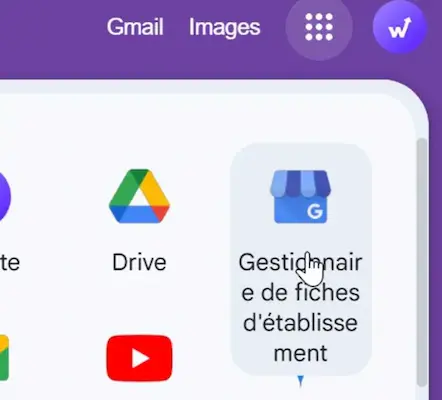
Select your location
Click "Verify" (the label may vary slightly by version).
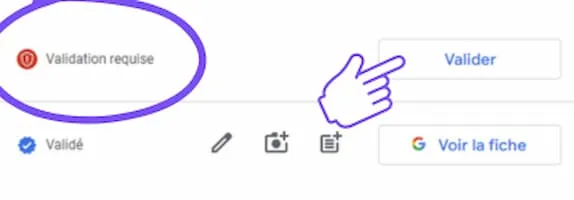
Choose your verification method (postal mail, SMS, email, or phone call)
Once you receive the code, enter it in your dashboard to complete verification
4. Polish the description of your Google Business Profile
Your business description is one of the first things users read.
👉 It needs to grab attention fast.
Use relevant keywords tied to your business, your services, and your location. Be clear, concise, and useful: highlight what makes you unique (expertise, experience, specialty, atmosphere…).
Mention your city or your geographic area; it will strengthen your local visibility.
Include your flagship products and services to help Google (and your customers!) understand exactly what you offer.
5. Add relevant attributes
Google Business Profile attributes let you add specific details about your location: accepted payment methods, accessibility, available amenities, atmosphere, delivery options, and so on.
👉 Adding these attributes enriches your profile with details that are useful to customers and improves your conversion rate.
Google also uses them to surface your profile to users looking for a specific service (genuinely useful and effective!).
For example: a user searches for a vegetarian restaurant with a terrace; if you have filled in those attributes, your profile will be favored in the results.
How to do it:
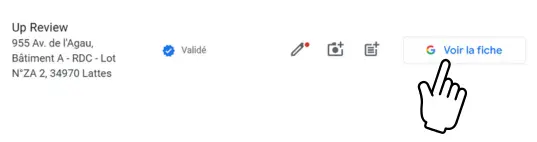
- Click "View profile" from your Google Business account.
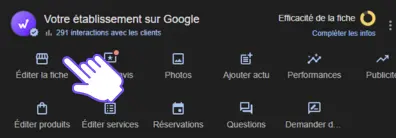
- Click "Edit profile"
- Go to the "More" section, then click to add or edit attributes.
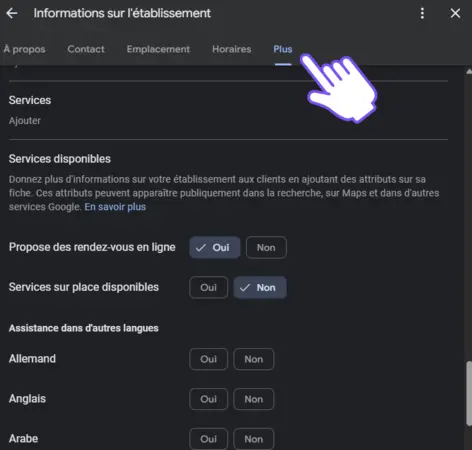
- Check the options that apply to your business:
- Payment methods,
- Accessibility for people with disabilities,
- Women-led,
- LGBTQ+ friendly,
- Delivery,
- Wi-Fi
- Parking, etc.
- Then save (the attributes will become visible on your profile once Google approves them.)
6. Fix the pin on Google Maps
Check and adjust the pin marking your location on Google Maps. Make sure it points precisely to your entrance or building, to avoid confusion and help customers find you.
How to do it:
Open your Google Business Profile
Go to the "Location" section
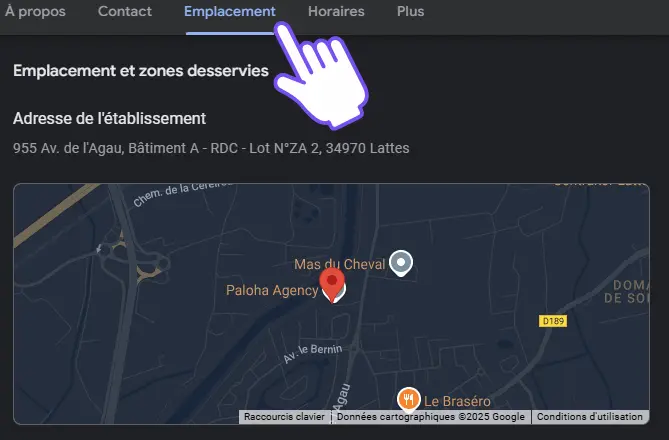
Click "Adjust"
Drag the pin to place it precisely on your location's entrance
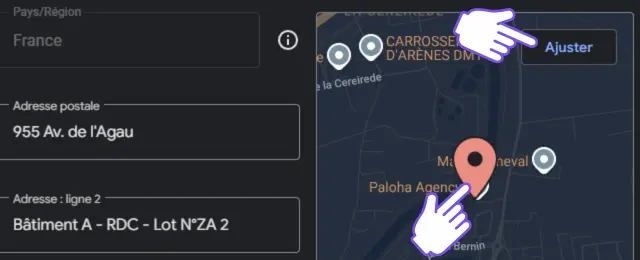
- Click "Save" to confirm the change
7. Add professional, high-quality photos
Quality images grab users' attention, give a first visual impression of your business, and build trust.
Add high-resolution photos of your storefront, your products, your team, or your premises. A well-illustrated profile is perceived as more credible… and it shows in the results: profiles with visuals get up to 2 times more clicks!
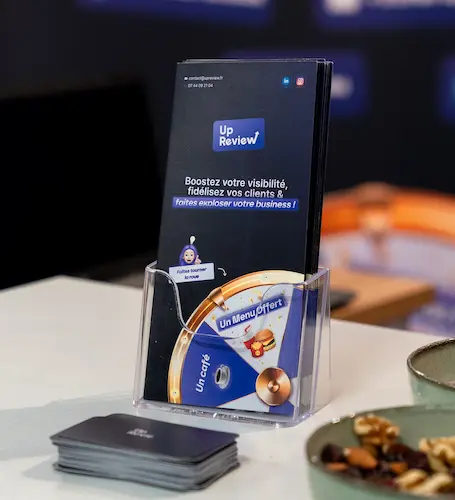
👉 Do not forget to update your photos regularly: it shows Google your business is active and improves your local SEO.
8. Turn on Google messaging (WhatsApp or SMS)
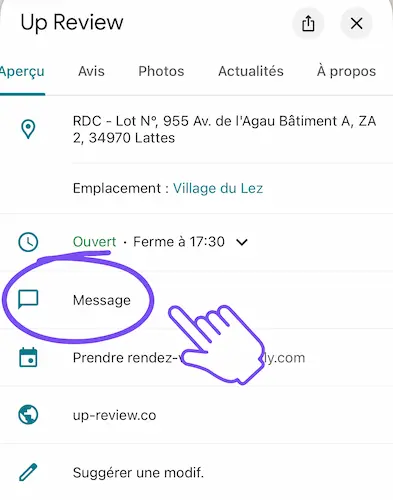
To optimize your Google Business Profile, making it easy for prospects to reach you is essential.
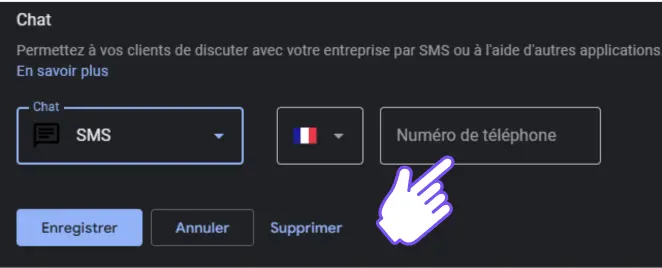
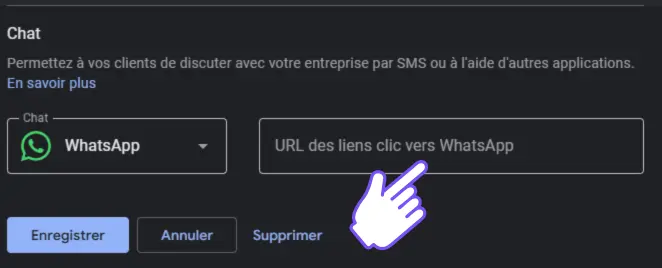
Google now recommends turning on Google messaging, which lets users send you an instant message via WhatsApp or SMS!
In one click, they can ask a question, request a quote, or book an appointment!
⚠️ If you turn on this option, make sure to check your messages regularly and reply quickly. A fast reply strengthens the customer relationship, improves your local SEO, and encourages people to take action.
How to do it:
Click "Edit profile" on Google Business Profile
Click the "Contact" tab
Add either:
- your phone number to turn on SMS
- a WhatsApp link
- Save
9. Publish Google Posts regularly
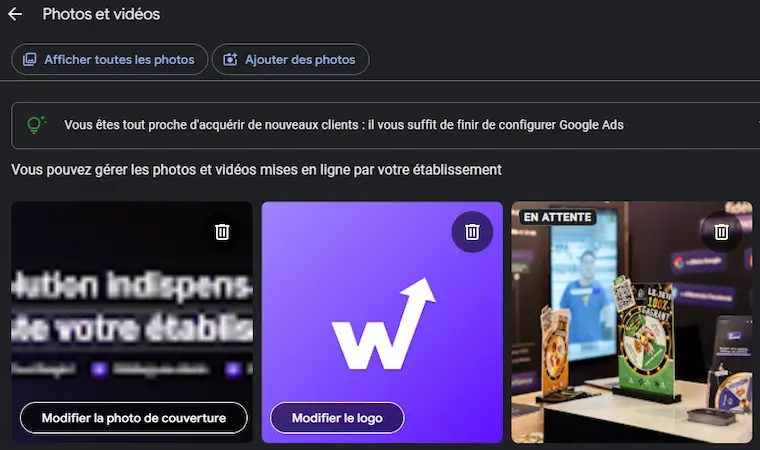
Use the Google Posts feature on your Google Business Profile to share special offers, news, upcoming events, or new products. Up Review lets you schedule and centralize these Google posts from a single dashboard.
It sends a positive signal to Google and encourages users to interact with your business (clicks, calls, visits…).
10. Add your products and services
The "Products" feature on Google Business Profile lets you showcase your catalog directly on your profile (make the most of it, it is another free sales channel!)
By creating dedicated listings for your products or services, you make your offer more visible and attract more customers in-store.
👉 You can also add a link to your website for each product or service, which strengthens your site's internal linking (and so your SEO).
How to do it:
Log in to your Google Business Profile.
Click "Edit Products" or "Edit Services" in the dashboard.
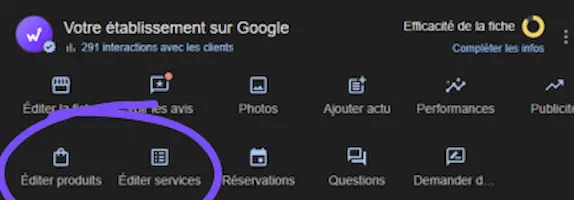
- Select the services offered from the list or click "Add a custom service".
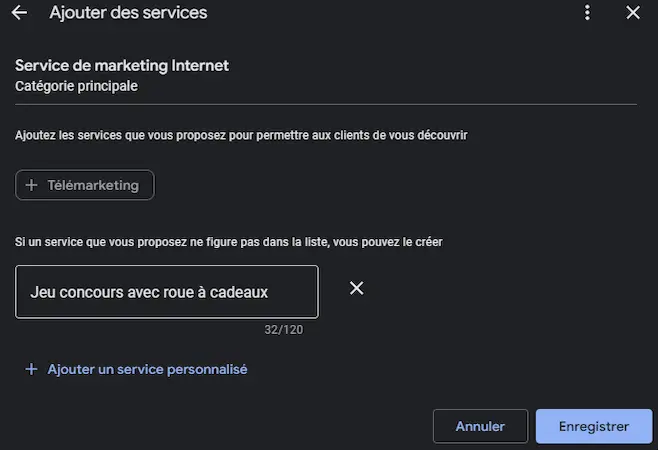
Fill in the necessary details (name, description, price if applicable).
Save to publish the items on your profile.
11. Turn on and build out the Questions & Answers section
The "Questions" section on your Google Business Profile is a great tool for reassuring and warming up prospects!
Answering clearly shows you are present, reliable, and attentive.
👉 It is also a way to prime prospects to take action: a customer who has their answers is far more likely to call you, visit you, or book with you.
12. Collect more Google reviews on your profile
Collecting Google reviews is THE best way to optimize your Google Business Profile in 2026.
Encourage happy customers to share their experience in-store or online:
- via a QR code in-store,
- through a link in a thank-you email or SMS,
- with prize games built for collecting Google reviews,
- or simply by asking them out loud, at the right moment.
A profile that receives reviews regularly sends a strong signal to Google: your business is active and well-liked, which improves your ranking in results while reassuring visitors.
What if collecting reviews became a game?
Encourage your customers to leave a Google review… by turning it into a game!
With our spin-to-win wheel, collecting reviews becomes easy, fast, and fun.
How does it work?
The customer scans a QR code displayed in-store,
They leave a Google review on your profile,
They spin the wheel for a chance to win a prize: a discount, a drink, a free product…
Result: more reviews, more interactions, and a memorable experience that makes people want to come back!

👉 Want to collect more Google reviews while building customer loyalty? Discover Up Review's spin-to-win prize games
13. Reply to every review (even the negative ones!)
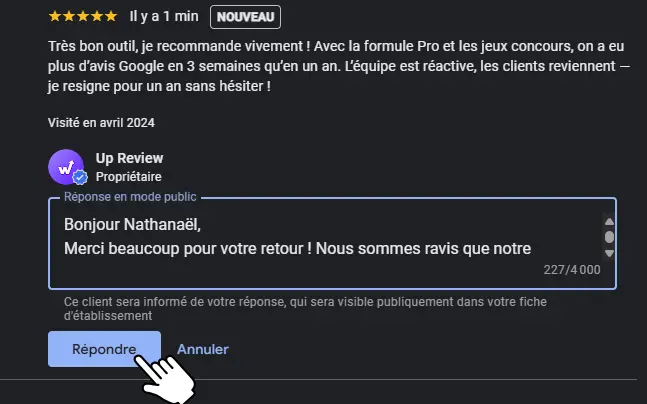
Should you really reply to every review, even the negative ones? Absolutely, and here is why.
It builds trust and improves your online reputation in everyone's eyes!
In fact, for Google, businesses that interact with customers and reply to reviews are more likely to rank better.
A simple reply can reassure a reader and strengthen your brand image.
Not sure how to reply to Google reviews the right way?
👉 Check out our full guide to replying effectively to Google reviews in 2026
14. Update your hours for each season
Did you recently move? Do your opening hours change with the seasons or during holiday periods?
Remember to update your Google Business Profile without delay!
An up-to-date profile avoids unpleasant surprises for customers, limits negative reviews, and sends positive signals to Google.
Reliable information means more trust, more visits, and a well-optimized Google profile.
15. Gain visibility in the Local Pack and the Knowledge Graph
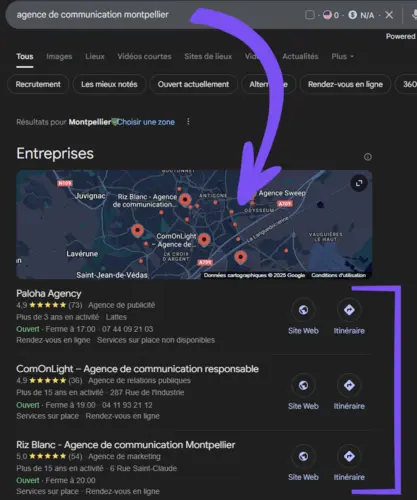
The Local Pack (the block with the map and the 3 local listings at the top of Google results) and the Knowledge Graph (the detailed panel on the right side of the screen on desktop) are the most visible spots in local search results.
Example of a Local Pack on Google
Example of the Knowledge Graph from Paloha Agency
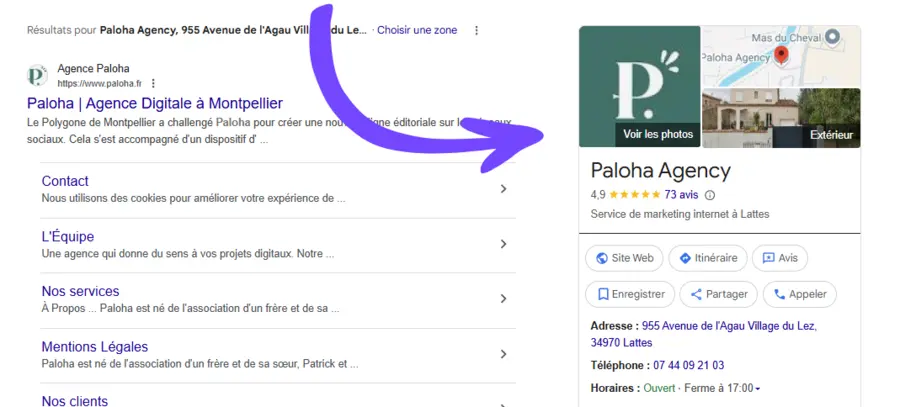
👉 Showing up in these spots means grabbing attention from the very first second, even before the user clicks on a website.
How do you get there?
- By fully filling in your Google Business Profile (details, hours, description, photos…).
- By earning regular, positive customer reviews, with replies.
- By keeping your information perfectly consistent across every platform (website, directories, social networks…).
- By building quality internal links between your profile and well-ranked local pages on your site.
Track your profile's local ranking and statistics
Optimizing a profile without measuring its effect means flying blind. Google Business Profile provides native statistics: impressions on Search and Maps, clicks to your website, calls, direction requests, and bookings.
These numbers give a trend, but not your real position on a given search. To track local ranking area by area, you need a geographic grid around your business. That is the role of Up Review's Google Business Profile management module: a profile audit scored out of 100 across 27 criteria (profile, reviews, photos, posts, control panel), AI-generated optimization recommendations, local ranking tracking on a GeoGrid across 3, 9, and 22 km radiuses, and a comparison with nearby competitors.
The mistakes that stall (or suspend) a profile
Some practices hold a Google Business Profile back, or even get it suspended. The most common ones:
- Stuffing the business name with keywords (for example "Cheap Plumber Paris"). The name must stay the real business name, or the profile risks suspension.
- Creating several profiles for the same address: Google treats duplicates as spam.
- Using an address that is not a real customer contact point, such as a simple PO box.
- Leaving reviews unanswered, especially negative ones: it signals a neglected profile.
- Never updating your hours or posting: a frozen profile falls behind active competitors.
If your profile still does not appear on Google Maps, first check that it is verified, then that none of these mistakes apply. Facing a fake or defamatory review, follow our guide to remove a Google review.
Optimize your Google Business Profile with Up Review
As you have seen, a well-optimized Google Business Profile increases your chances of appearing at the top of local results. The result: more visibility and more customers in-store.
With Up Review, collect Google reviews in-store with ease. Improve your overall rating and strengthen your local visibility.
Track your performance, automate your campaigns, and turn every customer visit into a visibility opportunity.
To see where you stand, start with the free Google Business Profile audit: it scores your profile and lists what to fix first. You can also estimate how many reviews you need to reach your target rating with the Google review calculator.

👉 See how Maison Ravenel gained 6,000+ reviews in 10 months!
or